Okta
Use Okta as a User Source so the people who already sign in with their Okta account can sign in to your MCP Gateways. This guide walks you through what to do in the Okta admin console. Once you have the values it tells you to copy, create the User Source in Arcade.
Before you start
- An Okta admin role that can create OIDC app integrations, such as Super Admin or Application Administrator.
- An Arcade project where you’ll create the User Source.
Register an app in Okta
Open the Okta admin console
Sign in to your Okta admin console (typically https://<your-okta-org>-admin.okta.com) with one of the roles listed above.
Go to Applications → Applications → Create App Integration.
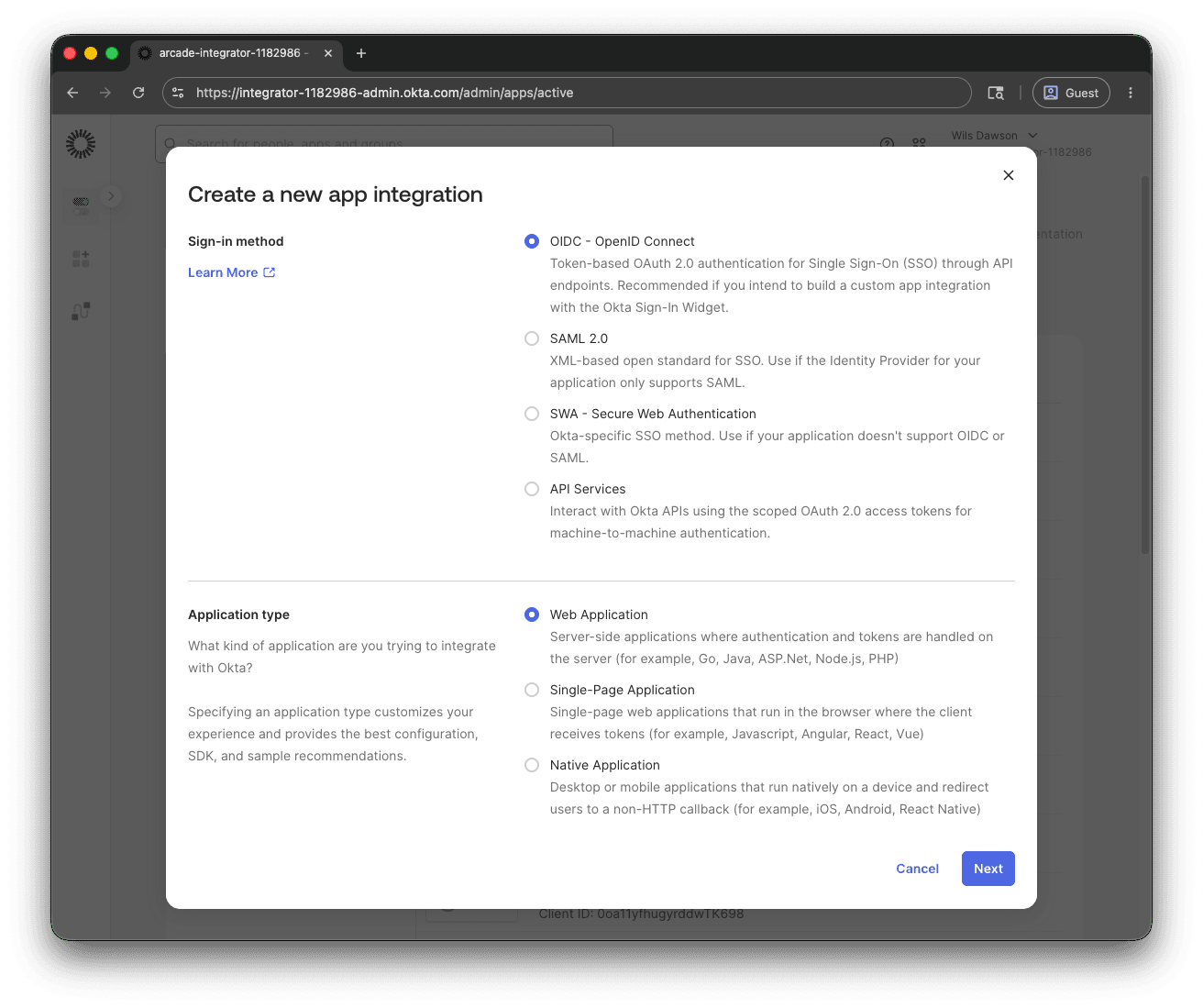
Choose OIDC and Web Application
In the Create a new app integration dialog:
- Sign-in method: OIDC - OpenID Connect
- Application type: Web Application
Click Next.
Fill in the app settings
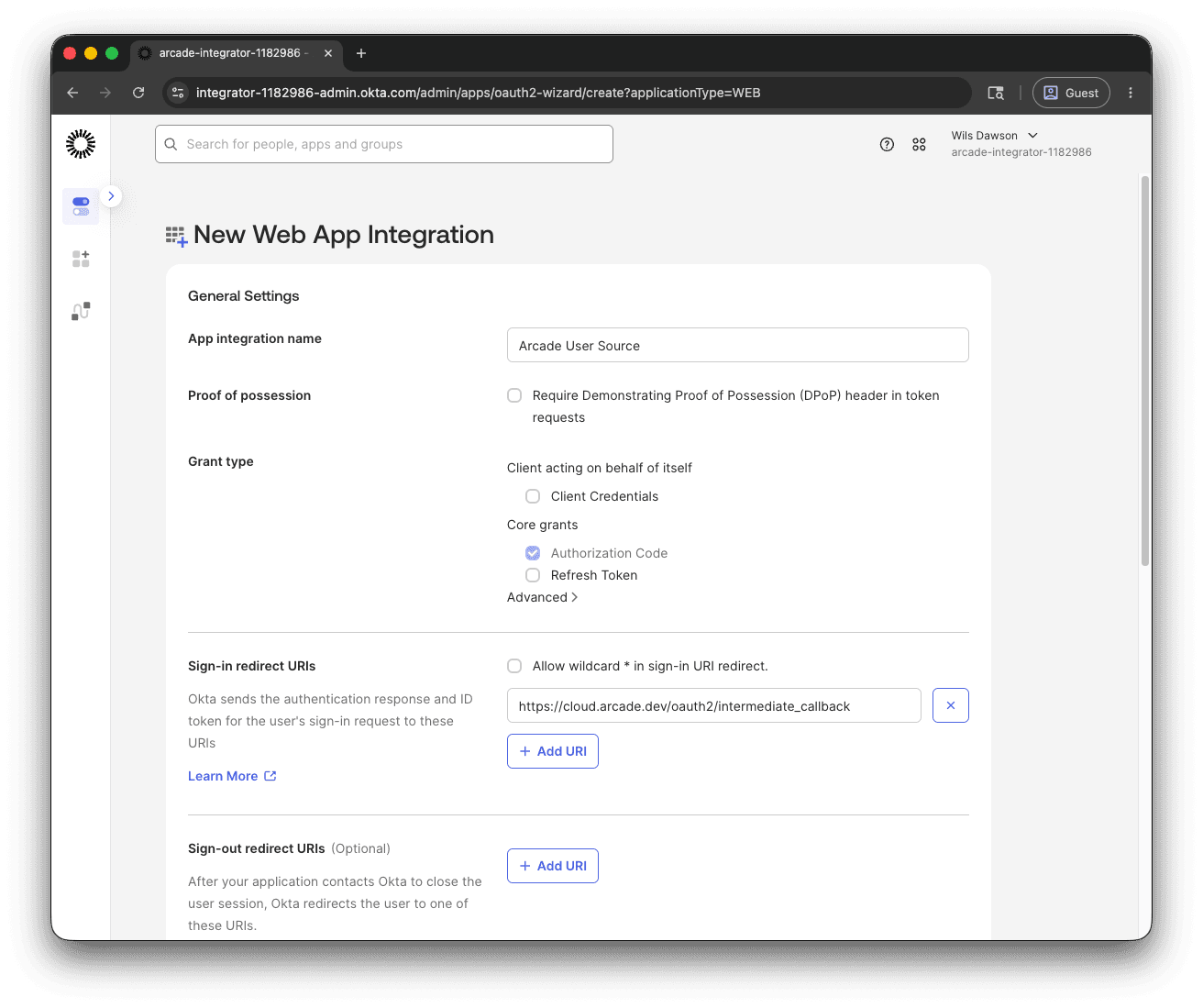
On the New Web App Integration form:
- App integration name: a name your team will recognize, for example
Arcade User Source. - Grant type: leave Authorization Code checked (the default). Leave Refresh Token unchecked; Arcade doesn’t need it.
- Sign-in redirect URIs: replace the placeholder value with
https://cloud.arcade.dev/oauth2/intermediate_callback. - Sign-out redirect URIs: leave empty.
- Assignments: choose whichever assignment model fits your org. Arcade doesn’t care how you assign the app, only that the end users who try to sign in have access to it.
Scroll down and click Save. Okta creates the app and opens its details page.
Require PKCE and note the client credentials
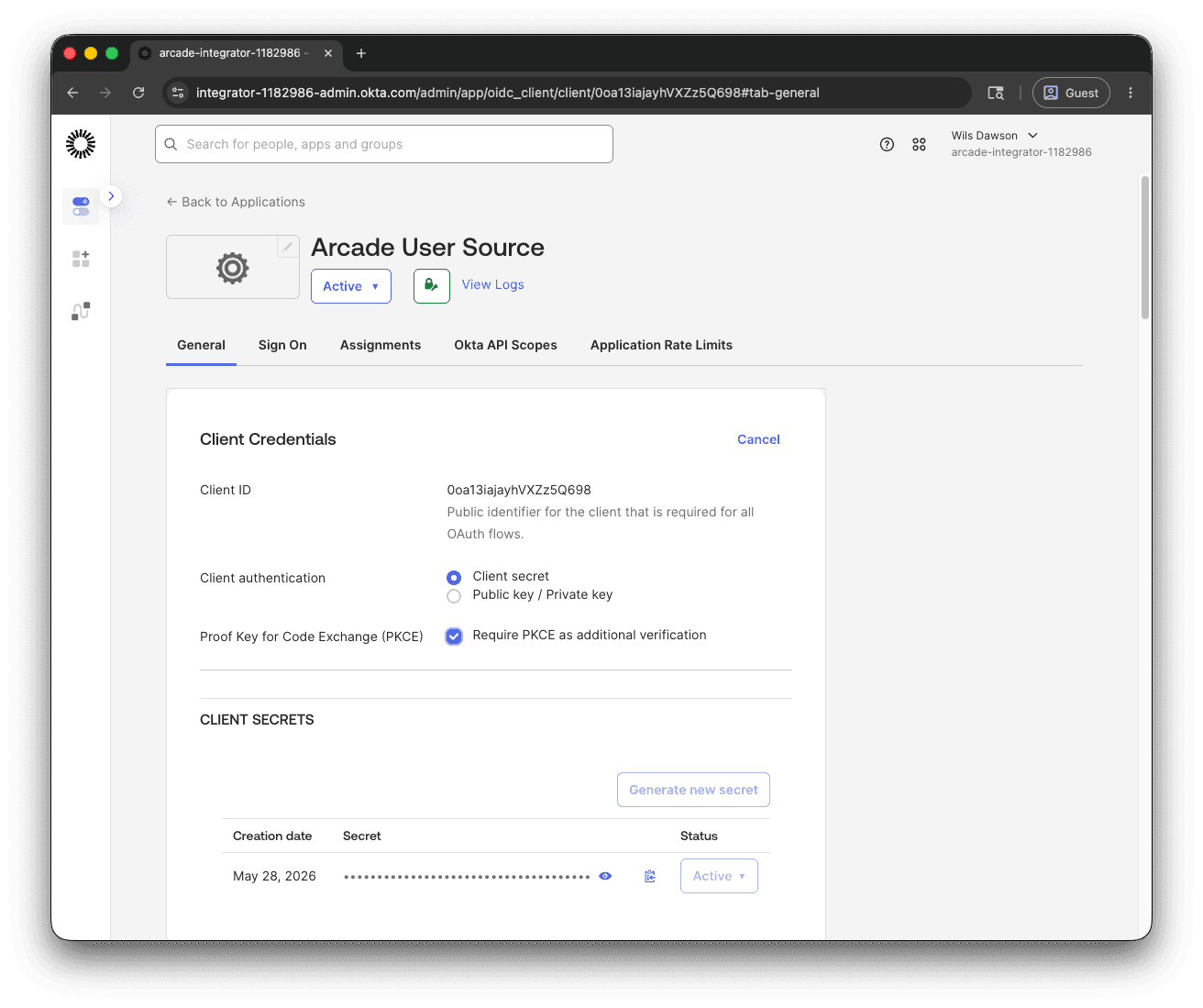
On the app’s General tab, find the Client Credentials panel.
- Check Require PKCE as additional verification. Arcade always uses PKCE when authenticating end users; requiring it here means Okta refuses any non-PKCE flow, even by accident.
- Note the Client ID value.
- Click the eye icon next to the Client secret value, copy it, and keep it somewhere safe. You’ll paste this into Arcade as the Client Secret.
Copy these values to Arcade
Copy these values into Arcade’s User Source form:
| Arcade field | Where to find it in Okta |
|---|---|
| Issuer URL | Your Okta org URL, for example https://<your-okta-org>.okta.com. This is the same hostname you see in the admin console URL, minus the -admin suffix. |
| Client ID | The Client ID field on the app’s General tab, Client Credentials panel. |
| Client Secret | The Client secret value you copied earlier. The secret stays visible on the General tab so you can re-copy it later if needed. |
| Subject Claim | Use the default, sub. Okta’s sub claim is the user’s stable Okta user ID. |
Create the User Source in Arcade
Open the User Sources dashboard , click Create User Source, and paste the values from the table above. For a walkthrough of the form, see Create a User Source in the User Sources overview.
Once the User Source is active, attach it to an MCP Gateway by following Create via Dashboard and picking User Source under “Non-Arcade Users” in the gateway form.
Notes
- Custom Okta domains: If your org uses an Okta-hosted custom domain (for example,
auth.yourcompany.com), use that hostname in the Issuer URL instead of<your-okta-org>.okta.com. Your end users will see the custom domain in the sign-in URL. - Custom Authorization Servers: This guide uses Okta’s built-in Org Authorization Server, whose issuer is your Okta org URL. If your team uses a Custom Authorization Server for this app (for example, the default
oauth2/defaultserver, or one you’ve configured under Security → API → Authorization Servers), use that server’s Issuer URI instead. Custom Authorization Servers are useful when you need to customize scopes, claims, or access policies. - Client secret rotation: Okta lets you generate a new client secret on the same Client Credentials panel and keep the old one active until you’re ready to switch. See Rotate the client secret in the User Sources guide for the Arcade side.
- Custom subject claims: Arcade can identify end users by any claim that ends up in the ID token. If you need something other than
sub, configure a custom claim on a Custom Authorization Server and set the User Source’s Subject Claim to its name. Arcade only reads the ID token; it doesn’t have access to access tokens or other token types.